

Google Workspace – Gmail, Google Docs, Google Sheets, Google Slides, Google Drive, and Google Meet – is the productivity suite used by millions of Singapore businesses, schools, and individuals. From startups in one-north to primary schools in Tampines to government-linked companies in the CBD, Google Workspace is part of the daily work infrastructure of a substantial portion of Singapore.
Google Gemini is AI built directly into all of these tools. For Singapore Workspace users, this means AI is not a separate application you switch to – it is available inside the applications you already use for every task. This guide shows you exactly how to access and use Gemini in each Google Workspace application and where it adds the most value for Singapore users.
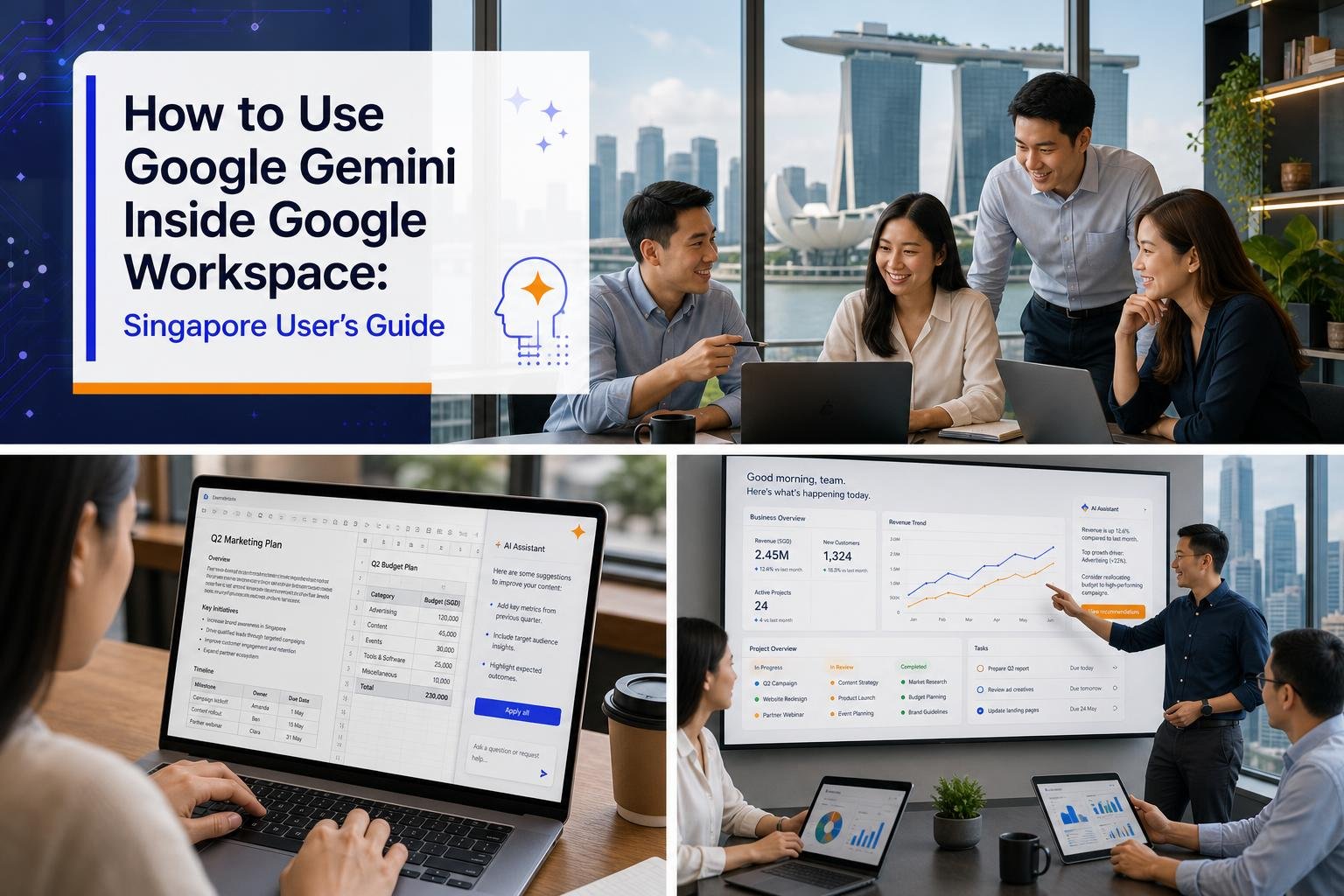
Accessing Gemini in Google Workspace
The availability of Gemini features in Google Workspace depends on your subscription tier. For personal Google accounts, a basic version of Gemini is available for free. For Google Workspace subscribers, Gemini is included at different levels depending on which plan your organisation has. Check with your Google Workspace administrator if you are unsure which Gemini features are available to you.
Once available, Gemini appears as a distinctive icon – typically a star or sparkle symbol – in the toolbar of Gmail, Docs, Sheets, and other Workspace applications. Clicking this icon opens the Gemini panel or triggers Gemini functionality specific to that application.
Gemini in Gmail: Smarter Email Management
For most Singapore Workspace users, Gmail is where they will see the most immediate practical benefit from Gemini. The volume of email that Singapore professionals manage is substantial and Gemini addresses several of the most time-consuming aspects of email work.
Summarising email threads: Long email chains – especially those involving multiple stakeholders discussing a complex issue – take significant time to read through when you need to understand the full context. Click the Gemini icon in any email thread and ask it to summarise the key decisions and outstanding questions in this thread. In 15 seconds you have a clear picture of where things stand without reading every message. For Singapore project managers, account managers, and anyone dealing with complex multi-party communications, this alone is worth the Gemini upgrade.
Drafting email replies: Gemini can draft a reply based on the context of the email thread. In the compose window of a reply, click the Gemini icon and describe what you want to communicate. Help me write a reply accepting this meeting request but suggesting we move it to Thursday afternoon and proposing that we include our technical director in the call. Gemini drafts the reply in context, drawing on the original email for relevant details. Review, adjust any specifics, and send.
Writing new emails from scratch: For longer emails – proposals, detailed project updates, escalation communications – describe what you want to say and Gemini drafts it. Writing a detailed project status update email to an executive sponsor. The project is on track for delivery. Key milestones completed this week. One risk we need to flag. Asking for a decision on [specific issue] by Friday. Gemini produces a professionally structured draft that you refine with specific details.
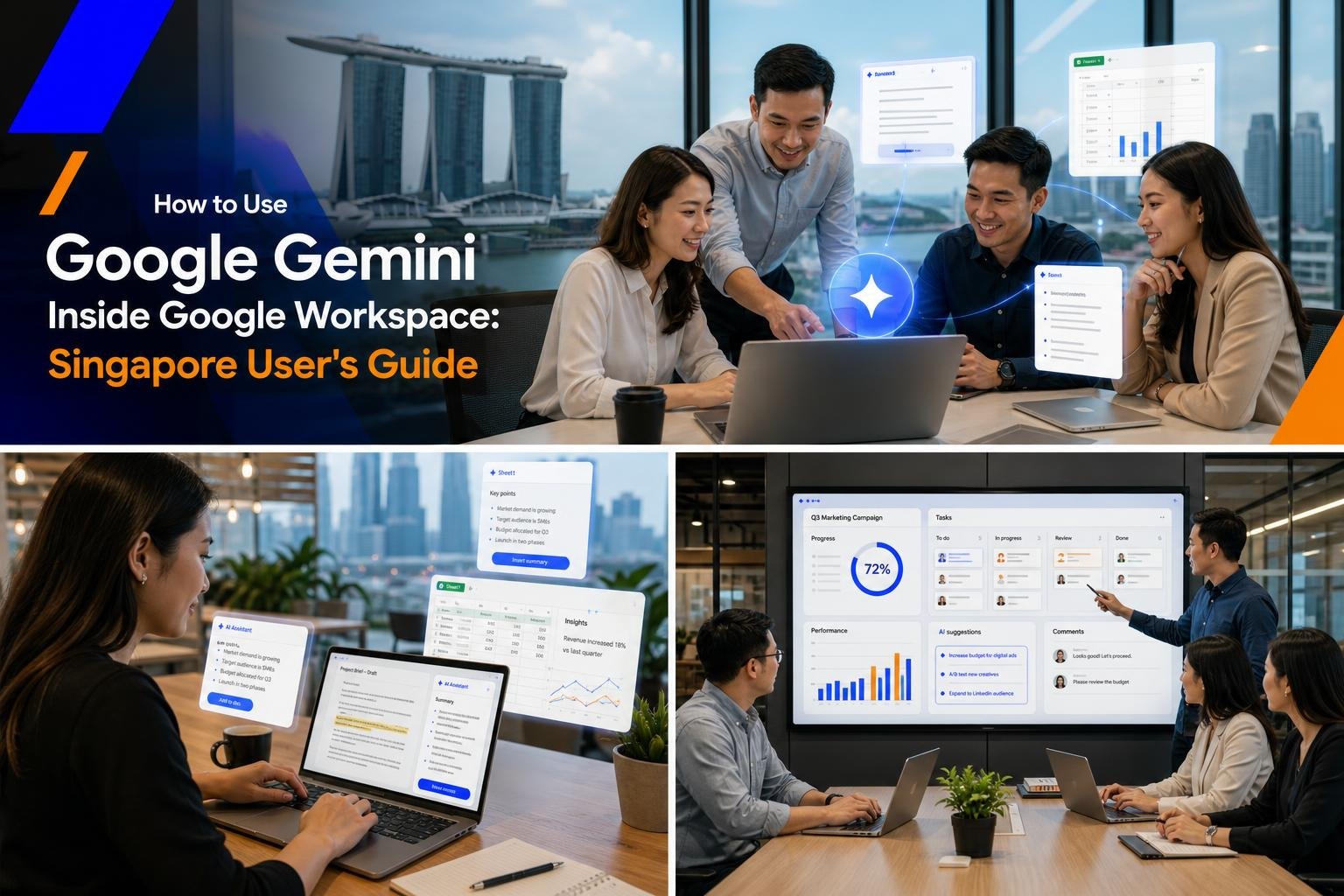
Gemini in Google Docs: Document Creation and Editing
For Singapore professionals who produce reports, proposals, policies, and presentations in Google Docs, Gemini provides substantial help at the drafting and editing stages.
Starting new documents: When you open a blank Google Doc, you can invoke Gemini immediately with Help me write. Type a brief description of the document you need – Write an executive summary for a proposal to implement an AI customer service system for a Singapore retail company. The document is for the CEO and CFO – and Gemini generates a starting draft. This eliminates the most intimidating part of document creation: the blank page.
Improving existing documents: Select any passage in an existing document and access Gemini to ask for improvements. Ask it to make this section more concise, improve the clarity of this paragraph, rewrite this in a more formal tone, or add a smooth transition between these two sections. For Singapore professionals who are competent in their subject matter but want to improve the quality of their professional writing, this iterative editing with AI assistance is one of the most practical benefits.
Summarising long documents: For lengthy documents – lengthy reports, detailed specifications, comprehensive policy documents – select the content and ask Gemini to summarise it into key points for executive consumption. This is particularly useful for preparing meeting materials from comprehensive background documents.
Gemini in Google Sheets: Data Analysis Without Excel Expertise
Many Singapore SME owners and managers use Google Sheets for business data but are limited by their knowledge of Sheets’ functions and formulas. Gemini in Sheets addresses this by allowing you to interact with your data in natural language.
Asking questions about your data: Open a Sheet with business data and ask Gemini questions in plain English. What was our highest revenue month in Q1 2026? Which product category had the most returns this year? How does this quarter compare to the same quarter last year? Gemini reads your data and answers these questions without you needing to know how to write the underlying formulas or pivot table configuration.
Creating formulas by description: Ask Gemini to write a formula for any calculation you need. Write a formula that calculates the average order value for orders from Singapore customers only, filtering by the Country column. Write a formula that highlights cells in column D in red if the value is more than 10% below the target in column E. Gemini produces the correct formula that you can paste into your sheet.
Creating charts and visualisations: Ask Gemini to suggest the best chart type for your data and create it. Create a bar chart comparing monthly revenue across our 5 product categories for the past 6 months, with revenue on the Y axis and months on the X axis. Gemini configures and inserts the chart based on your actual data.
Gemini in Google Meet: Meeting Intelligence
For Singapore teams that rely on Google Meet for internal and client video calls, Gemini’s meeting features are one of the most practically valuable AI capabilities in the Workspace suite. Gemini can take notes during your meeting so you can focus entirely on the conversation, generate a summary with key decisions and action items after the call, and in some configurations allow you to ask questions about what was discussed earlier in the meeting.
This is particularly valuable for Singapore businesses with remote or hybrid teams where meetings produce commitments and decisions that need to be tracked carefully. The automatic generation of accurate meeting summaries and action item lists reduces the risk of follow-through failures and ensures all participants have a consistent record of what was agreed.
Getting the Most from Gemini in Google Workspace
The key to getting value from Gemini in Workspace is treating it as a capable colleague you can give instructions to in plain, clear English. Be specific about what you want, provide relevant context, and review everything before using it. Gemini occasionally makes errors – it might misunderstand a data structure in Sheets or produce a document draft that does not quite capture what you needed. The more specific and clear your instructions, the more likely you are to get a useful first draft rather than needing significant corrections.
For Singapore organisations considering whether to upgrade their Workspace plan to include Gemini features, the clearest ROI comes from teams with high email volumes, regular document production, significant Sheets-based data work, and frequent video meetings. For these teams, the time savings from Gemini typically pay for the subscription cost within the first month.
Related reading on Agent Setup SG
- AI Tools for Singapore Students: Study Smarter and Get Ahead in 2026
- How to Use AI for Your Singapore Hawker Business (Practical Guide)
- How to Use Perplexity AI Instead of Google: The Complete Singapore Guide
FAQ: How to Use Google Gemini Inside Google Workspace: Singapore User's Guide
Is this suitable for beginners in Singapore?
Yes. This guide is practical and beginner-friendly.
Do I need paid tools to start?
No. Start with free options and scale later.
How quickly can I implement this?
Most people can complete a first setup in under one hour.
What should I track first?
Track one key outcome such as leads, time saved, or conversion improvements.
What mistake should I avoid?
Do not skip setup basics and validation steps.
Free resource for Singapore readers: Want to save time and money with AI starting today? Download the free Singapore AI Cheat Sheet, 10 prompts made for Singaporeans, plus a free 7-day email course delivered straight to your inbox. Grab it now at agentsetupsg.com/free instead.