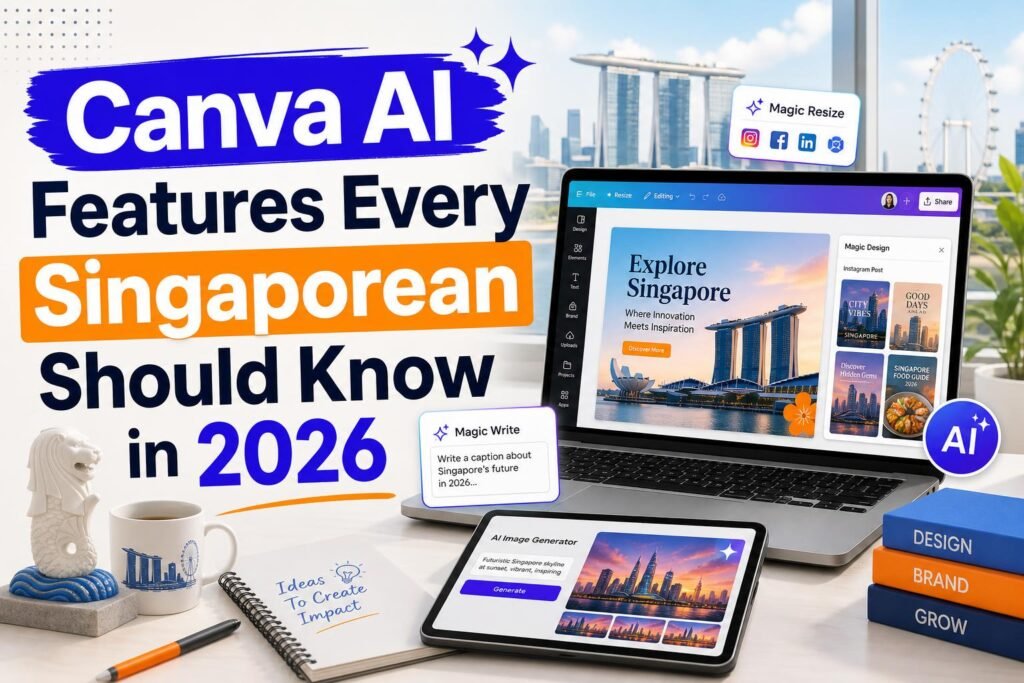
Canva AI Features Every Singaporean Should Know in 2026
Canva has been the most democratising design tool of the past decade. It gave people with no design background the ability to create professional-looking graphics, presentations, and marketing materials. The introduction of AI features in recent years has taken this a step further: now you do not just have access to professional design templates, you have an AI assistant that can generate content, create images, remove backgrounds, write copy, and build entire presentations from a single text prompt.
For Singaporean businesses, freelancers, students, and content creators who need to produce visual content regularly but do not have the budget for a design agency or the time to develop professional design skills, Canva’s AI features are genuinely transformative. This guide covers every AI feature worth knowing, how to use them, and which ones are available for free versus on the paid plan.
Magic Write: Your AI Writing Assistant Inside Canva
Magic Write is Canva’s built-in AI text generator. Instead of opening a separate tab to use ChatGPT and then copying the text back into your design, Magic Write lets you generate text directly inside any Canva design without leaving the interface.
How to use it: In any Canva design, click on a text element and look for the Magic Write option in the toolbar, or use the forward slash shortcut inside a text box to access it. Type a brief description of the text you need – for example, write a compelling Instagram caption for a Singapore café promoting their new matcha menu – and Magic Write will generate several options for you to choose from.
Magic Write is available on the free Canva plan with a monthly usage limit. The limit resets each month and is generous enough for most moderate users. Heavy users who use it daily will benefit from upgrading to Canva Pro.
Best uses for Singapore users: social media captions and hashtag suggestions, slide text for presentations and pitch decks, taglines and headlines for marketing materials, product description copy for e-commerce, and newsletter section text.
Background Remover: Professional Product Photos Without a Studio
One of Canva’s most practically useful AI features is the one-click background remover. Upload any image and Canva’s AI will identify the subject and remove the background in seconds, giving you a transparent PNG that you can place on any background, colour, or design.
For Singapore businesses, this is particularly valuable for product photography. If you sell products online – on Shopee, Lazada, your own website, or GrabFood – professional white-background product photos significantly increase conversion rates. Traditionally this required either a photo studio or significant Photoshop skills. With Canva’s background remover, you take a photo on your phone in reasonable lighting, upload it to Canva, click Background Remover, and download a clean product photo in about two minutes.
Note: The background remover is a Canva Pro feature and is not available on the free plan. However, a free alternative is remove.bg which offers a limited number of free background removals per month.
Magic Design: AI-Generated Complete Designs
Magic Design is Canva’s most impressive AI feature for non-designers. You describe what you want to create, and Canva generates several complete, ready-to-edit design options. You are not just getting a blank template – you are getting a design that already includes layout, colour scheme, imagery suggestions, and placeholder text appropriate to your brief.
How to use it: From the Canva home page, click Create a Design and then choose the Magic Design option. Type your brief – for example, I need a promotional flyer for a Tanjong Pagar café’s new brunch menu. Modern aesthetic, warm tones, inviting. – and Canva will generate four to six design variations for you to choose from. Click on the one that resonates most, customise the text and images, and you have a professional design.
This is particularly valuable for Singapore SME owners and entrepreneurs who need professional visual materials but do not have design skills or the budget to hire a designer for every marketing need.
Text to Image: Custom AI-Generated Images
Canva’s Text to Image feature, powered by AI image generation technology, allows you to create custom images directly inside your designs without needing a stock photo licence or a photographer. You describe the image you want and the AI generates it.
How to use it: Inside any Canva design, go to the Apps section in the left sidebar and select Text to Image. Type a description of the image you need – for example, a diverse group of Singapore professionals in a modern office having a collaborative meeting, warm natural lighting, photorealistic style – and the AI will generate four image options. Select the one that fits best, and it is immediately available in your design.
This is particularly useful for blog post header images, social media posts when you do not have relevant photos, presentation slides, and marketing materials where a specific type of image is needed that would be difficult or expensive to source through stock photo sites.
Important note on commercial use: Images generated through Canva’s AI image generator can be used for commercial purposes when you have a Canva Pro or Teams subscription. Check the current terms for free plan limitations.
Magic Presentations: Full Slide Decks from a Prompt
This is arguably Canva’s most ambitious AI feature. You describe the presentation topic and audience, and Canva generates an entire slide deck – structure, layout, design, and placeholder content – in about 30 seconds.
How to use it: Create a new Presentation in Canva and select the Presentation with Magic Design option. Describe your presentation: I need a 10-slide presentation for a Singapore SME owner explaining how to implement AI tools in their business. The audience is non-technical business owners aged 35 to 55. Professional but approachable style. Canva generates a complete deck with title slide, content slides, and a closing slide.
The AI-generated content is placeholder content that you replace with your actual information. But the structure, visual hierarchy, and design are already done, saving you the most time-consuming parts of creating a professional presentation from scratch.
Resize and Magic Switch: Repurpose Across Platforms
One of the most practically useful Canva features for Singapore content creators is the AI-powered resize and platform-switching capability. Design a single piece of content – a social media post, a presentation slide, a marketing graphic – and Canva can automatically resize and reformat it for multiple platforms.
Create an Instagram square post and Canva can automatically reformat it for Instagram Stories (9: 16 vertical), Facebook cover photo, LinkedIn post, and Twitter header in seconds, with AI assistance rearranging the layout to suit each format. For Singapore businesses managing presence across multiple platforms, this eliminates the tedious work of manually resizing and rearranging designs for each platform.
Practical Canva AI Workflow for Singapore Small Businesses
Here is a weekly content creation workflow using Canva AI that takes approximately two hours per week and produces a month’s worth of social media content:
Session 1 (Sunday, 1 hour): Use Magic Write to generate captions for 12 social media posts – 3 posts per week for the coming month. Use Text to Image to generate custom images for posts that do not have a relevant photo. Design all 12 posts using Canva templates. Use the resize feature to create versions for Instagram, Facebook, and any other platform you manage.
Session 2 (Sunday, 1 hour): Schedule all 12 posts using Buffer or a similar scheduling tool. Review and approve the schedule. This gives you an entire month of social media content for approximately two hours of work.
The free plan handles most of what is described above. The main limitation is that some of the most powerful features – background remover, more AI image generations, and unlimited Magic Write – require Canva Pro at approximately $17 SGD per month. Start with the free plan and upgrade when you find yourself regularly hitting the limits.
Related reading on Agent Setup SG
- AI Tools for Singapore Students: Study Smarter and Get Ahead in 2026
- How to Use AI for Your Singapore Hawker Business (Practical Guide)
FAQ: Canva AI Features Every Singaporean Should Know in 2026
Is this suitable for beginners in Singapore?
Yes. This guide is practical and beginner-friendly.
Do I need paid tools to start?
No. Start free, then upgrade only when results justify it.
How quickly can I implement this?
Most readers can complete initial setup in under one hour.
What should I track first?
Track one clear metric such as leads, time saved, or conversion rate.
What is the biggest mistake to avoid?
Skipping setup basics and not validating outcomes with real use cases.
Free resource for Singapore readers: Want to save time and money with AI starting today? Download the free Singapore AI Cheat Sheet, 10 prompts made for Singaporeans, plus a free 7-day email course delivered straight to your inbox. Grab it now at agentsetupsg.com/free instead.
Related resources
- Related guide: How Singapore Financial Advisors Are Using AI in 2026 (And What Clients Should Know)
- Practical walkthrough: What is Grok AI and Should Singaporeans Use It in 2026?
- Detailed breakdown: DeepSeek vs ChatGPT: What Singaporeans Need to Know in 2026
- Product resource: 100 Prompts for SG Content Creators
- Product resource: 100 Prompts for SG Working Adults