How to Connect ChatGPT to WhatsApp: Step-by-Step Guide (2026)
In Singapore, WhatsApp is where business actually happens. Customers message you there to ask about prices, availability, opening hours, and bookings, often late at night or while they are out and about. Replying to every message personally is impossible to keep up with. Connecting ChatGPT to WhatsApp lets an AI assistant answer those messages instantly, around the clock, in your brand voice.

This guide explains, step by step, how to link ChatGPT (or any AI model) to WhatsApp, the different routes you can take depending on your comfort level, and how to do it without becoming a developer. By the end, you will understand exactly how to get an AI answering your WhatsApp messages.
—
What “Connecting ChatGPT to WhatsApp” Actually Means
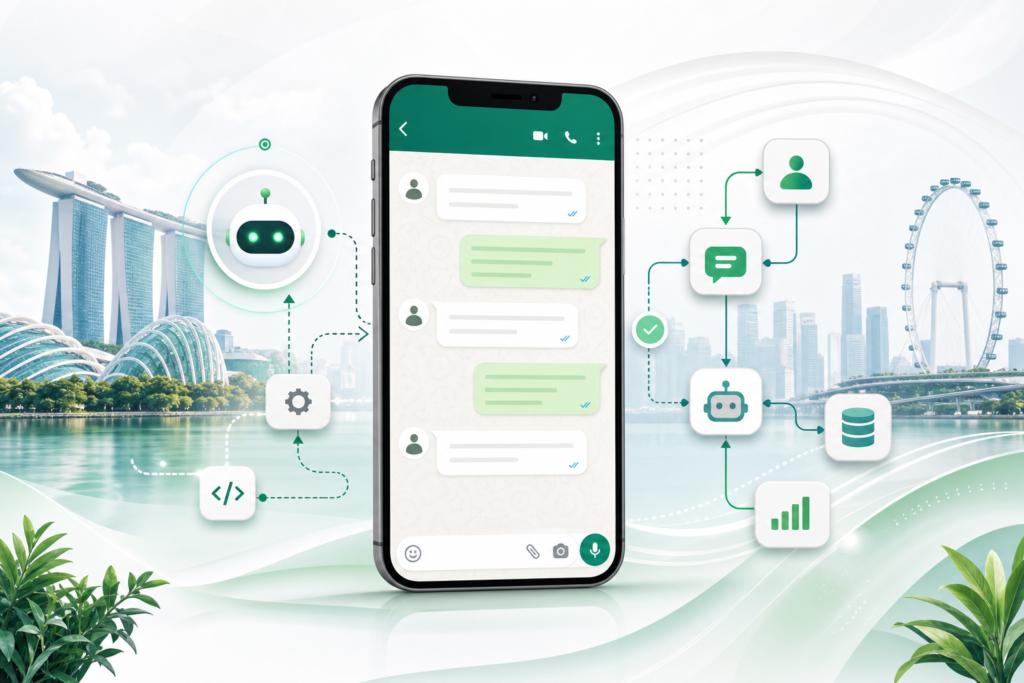
The idea is simple: when a customer sends a WhatsApp message, that message is passed to an AI model (like ChatGPT), the AI generates a reply based on your instructions and business information, and the reply is sent back to the customer on WhatsApp, automatically.
To make this work, three pieces need to talk to each other:
- **WhatsApp:** Where the conversation happens, specifically the WhatsApp Business Platform (also called the WhatsApp Business API), which allows automated messaging.
- **An automation layer:** A tool that connects the two and passes messages back and forth (such as a no-code platform or a chatbot builder).
- **The AI:** ChatGPT via OpenAI, or another model, which generates the answers.
There is an important distinction to understand first.
—
WhatsApp Business App vs WhatsApp Business Platform
These two are easy to confuse, but they are very different:
- **WhatsApp Business app:** The free app you download on your phone. Great for manual replies and simple quick-reply templates, but it does **not** support connecting external AI in any robust way.
- **WhatsApp Business Platform (API):** The official Meta product designed for automation and integrations. This is what you need to connect AI. It does not have its own app interface; instead, you access it through approved providers.
To run an AI assistant on WhatsApp, you need the WhatsApp Business Platform, accessed through a Business Solution Provider (BSP) or a chatbot platform that handles the connection for you.
—
Three Ways to Connect ChatGPT to WhatsApp
There are three broad approaches, from easiest to most technical. Choose based on your comfort and needs.
1. All-in-one chatbot platforms (easiest). Tools like Wati, Respond.io, Landbot, and similar are built specifically for WhatsApp business messaging and have AI features built in or easy to connect. They handle the WhatsApp API setup for you. Best for most small businesses.
2. No-code automation (flexible middle ground). Use Make.com or Zapier to connect a WhatsApp provider to OpenAI. More flexible, slightly more setup. Good if you want custom logic.
3. Custom build (most technical). Use Meta’s Cloud API directly with your own code or a server. Most control, requires development skills. Only for those comfortable with code or with a developer.
This guide focuses on the first two, since they suit most Singapore businesses.
—
Method 1: Using an All-in-One WhatsApp Chatbot Platform
This is the simplest route. Platforms like Wati or Respond.io are designed for exactly this.
Step 1: Get a WhatsApp Business Platform Number
- Sign up with a WhatsApp chatbot platform (for example, Wati)
- They guide you through connecting a phone number to the WhatsApp Business Platform
- You will need a dedicated phone number not currently used on the regular WhatsApp app, and a Facebook Business Manager account
- Complete Meta’s verification steps (the platform walks you through this)
This setup step is the most fiddly part, but the platform’s onboarding makes it manageable. Set aside an hour.
Step 2: Set Up Your Bot
- In the platform dashboard, create a chatbot or automation
- Most platforms let you build conversation flows visually (welcome message, menu options, FAQ answers)
- Look for the **AI** or **ChatGPT** feature, many now include AI replies built in
Step 3: Connect AI / ChatGPT
- Enable the AI feature in your platform
- Some platforms have AI built in; others let you add your OpenAI API key to use ChatGPT
- Provide the AI with your business information so it answers accurately (your services, prices, hours, policies, common questions)
- Write instructions for how the AI should behave, for example: “You are the friendly assistant for [Business]. Answer customer questions about our services warmly and concisely. If you do not know something, offer to connect them to our team.”
Step 4: Set Rules for Human Handover
- Configure when the bot should hand a conversation to a human (for example, when a customer asks to speak to someone, or for complex requests)
- This ensures customers are never stuck with a bot that cannot help
Step 5: Test and Launch
- Message your WhatsApp business number from your own phone
- Try common customer questions and check the AI’s answers
- Refine the instructions and information until replies are accurate and on-brand
- Once happy, your AI assistant is live on WhatsApp
—
Method 2: Using Make.com to Connect a WhatsApp Provider to ChatGPT
If you want more control and custom logic, you can use a no-code automation platform. Here is the concept using Make.com.
What You Will Need
- A WhatsApp Business Platform number through a provider (such as 360dialog, or via Make’s WhatsApp integration options)
- A Make.com account
- An OpenAI API account (for ChatGPT access)
Step 1: Set Up Your WhatsApp Connection
- Obtain WhatsApp Business Platform access through a supported provider
- Connect it to Make.com following the provider’s integration instructions
Step 2: Create the Automation (Scenario)
The flow you are building is:
- **Trigger:** New WhatsApp message received
- **Action:** Send the message text to OpenAI (ChatGPT) with your instructions
- **Action:** Take ChatGPT’s reply and send it back to the customer on WhatsApp
Step 3: Build It Step by Step
- In Make.com, create a new scenario
- Add the WhatsApp module as the trigger: **Watch for new messages**
- Add an **OpenAI** module: choose **Create a Completion** or the chat option
- In the prompt, include your system instructions plus the customer’s message (mapped from the trigger)
- Add another WhatsApp module: **Send a message**, using ChatGPT’s response as the message content
- Map the customer’s number so the reply goes to the right person
Step 4: Add Your Business Knowledge
In the OpenAI prompt, include key information so answers are accurate:
You are the assistant for [Business Name] in Singapore.
Here is what you know:
- Opening hours: [hours]
- Services and prices: [details]
- Location: [address]
Answer the customer's question below warmly and concisely.
If you cannot answer, say you will connect them to the team.

Customer message: [mapped message]
Step 5: Test and Activate
- Run the scenario manually to test
- Send a test WhatsApp message and confirm the AI replies correctly
- Fix any mapping issues
- Turn the scenario on so it runs automatically
—
Writing Good Instructions for Your WhatsApp AI
The quality of your AI’s replies depends almost entirely on the instructions and information you give it. A few principles:
Be specific about your business. Include hours, prices, services, location, and answers to your most common questions. The AI can only answer well if it knows your details.
Set the tone. Tell it how to sound, friendly, professional, concise. For Singapore customers, a warm but efficient tone usually works well.
Handle the unknown gracefully. Instruct it on what to do when it does not know: never make things up; instead offer to connect the customer to a person.
Keep replies short. WhatsApp is a chat medium. Tell the AI to keep responses brief and easy to read on a phone.
Define escalation. Be clear about when to hand off to a human, bookings, complaints, payment issues, or anything sensitive.
—
Important Considerations
Cost. You typically pay for the chatbot platform subscription, plus WhatsApp’s per-conversation fees (set by Meta), plus OpenAI API usage if you use ChatGPT directly. For most small businesses these costs are modest, but check the pricing of each piece.
WhatsApp’s rules. Meta has rules about business messaging, including requiring opt-in for certain messages and limits on promotional messaging. Reputable platforms keep you compliant; follow their guidance.
PDPA and privacy. You are handling customer messages and data. Be mindful of Singapore’s PDPA: only collect what you need, tell customers when they are talking to an AI, and handle their data responsibly.
Always offer a human. Customers get frustrated when trapped with a bot. Make it easy and obvious how to reach a real person.
—
Which Method Should You Choose?
Choose an all-in-one platform (Method 1) if: You want the simplest setup, you are not technical, and you want WhatsApp messaging features (broadcasts, team inbox, templates) alongside the AI. This suits most small businesses.
Choose no-code automation (Method 2) if: You want custom logic, you already use Make.com or Zapier, and you are comfortable building automations. This suits those who want flexibility.
Choose a custom build (Method 3) if: You have development resources and need full control. This suits larger or more technical operations.
—
Getting Started Today
- Decide your method, most people should start with an all-in-one platform like Wati or Respond.io.
- Set up your WhatsApp Business Platform number (the trickiest step; follow the platform’s onboarding).
- Gather your business information: hours, prices, services, FAQs.
- Connect the AI and write clear instructions.
- Test thoroughly from your own phone before going live.
- Launch, then monitor real conversations and keep improving.
For a Singapore business, an AI assistant on WhatsApp means you never miss an enquiry again, even at midnight. Customers get instant answers on the channel they already use, and you reclaim hours of repetitive replying.
—
Want a done-for-you WhatsApp AI setup built for Singapore businesses? The AgentSetupSG playbook series gives you step-by-step systems and templates.